

RentMy provides tools to help you design and develop your website to match your brand and support your business vision. This article provides information how to take your RentMy eCommerce website to the next level!
Add Media To Homepage, About Us and Other Custom Pages:
1. Go to Admin > Website Settings > Design > Media menu Add Image to the media manager and then copy the image’s link or copy the image’s link from uploaded image.
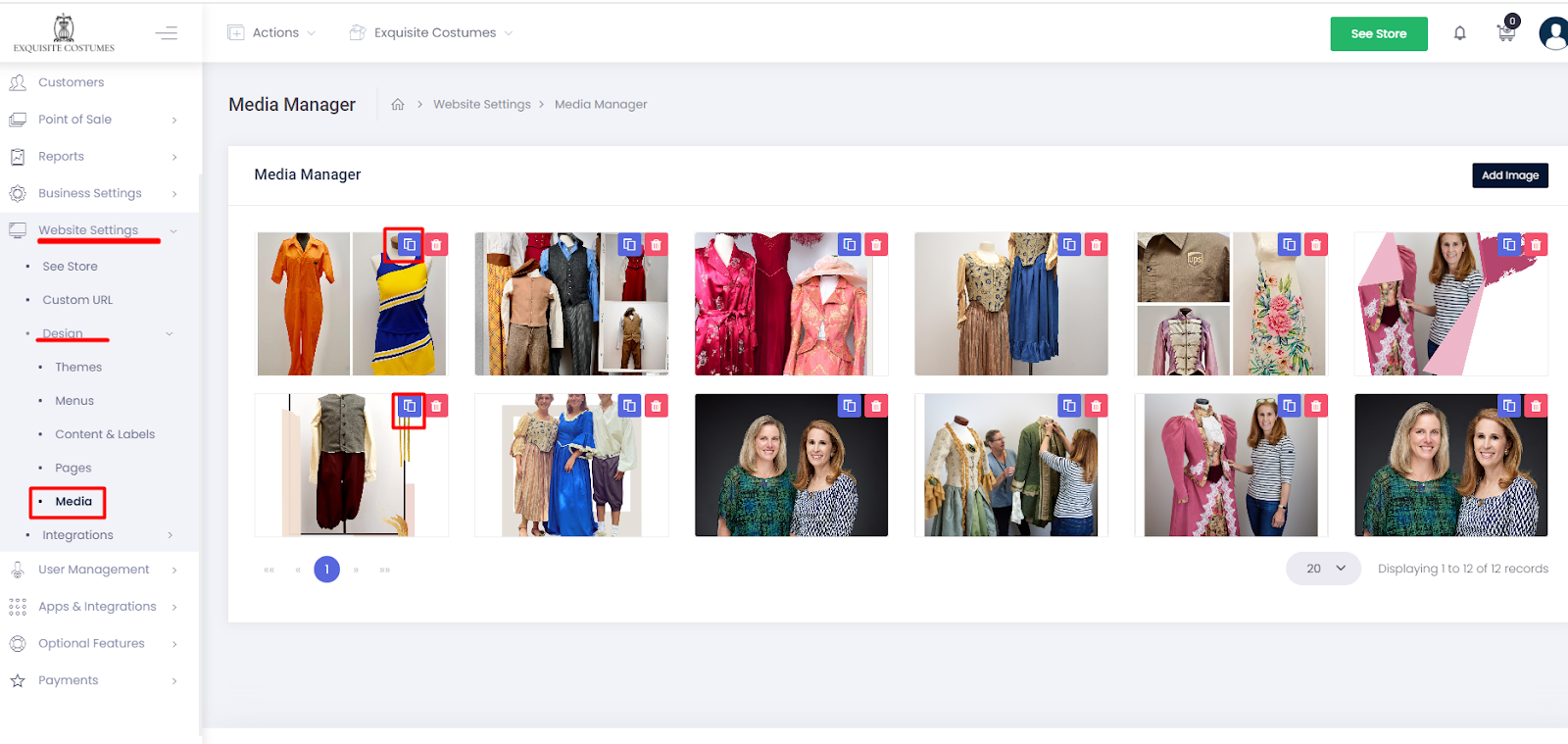
2. Visit Website Settings > Design > Content & Labels > Add website Pages menu and click the page name for which you would like to add/update images:
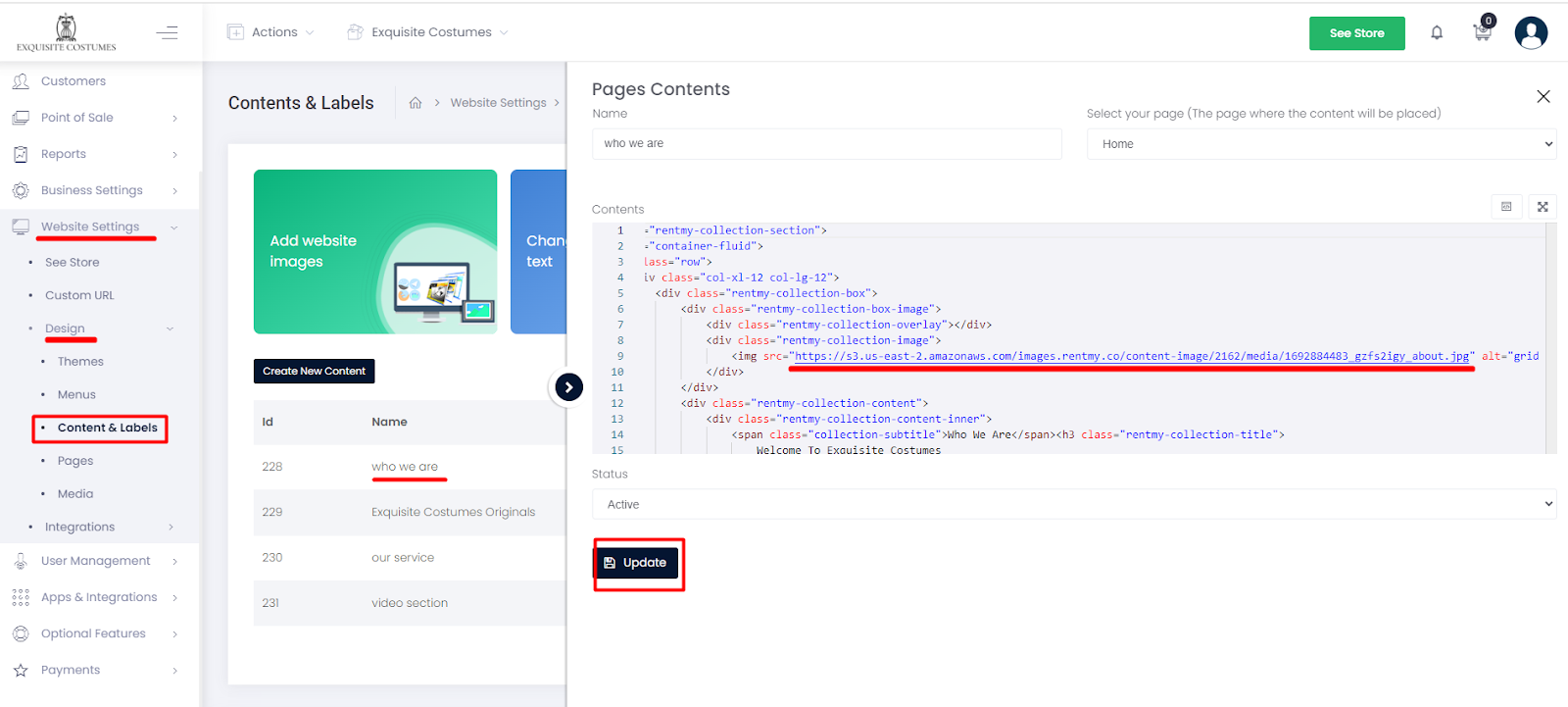
** **If content already exisits, you will need to edit the the content or click Create New content and paste the link you copied. (enter the link you copied after the "src" link using this structure): src=”https://s3.us-east-2.amazonaws.com/images.rentmy.co/content-image/590/media/1693471707_ww9iwnkw_Screenshot_26.png”
3. Click Update to Save
Add Video Module To Page
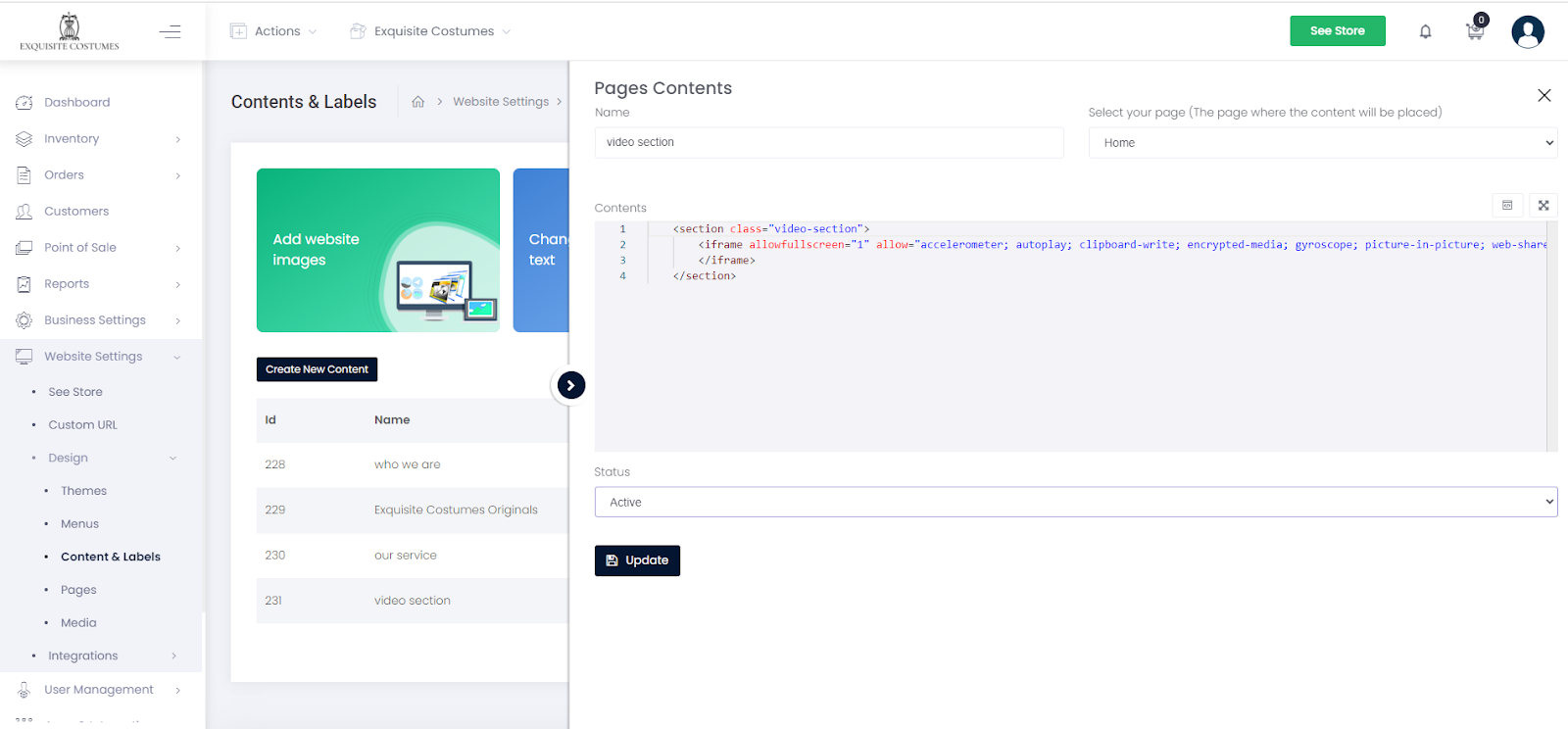
**1.Go to Website Settings > Design > content & Labels > Add website Pages > edit the video section to "active". **
**
**
2. To add new video, click “Create New Content” or edit the video section: add the video link to the HTML and update (using link from the Add Media function explained above).
**
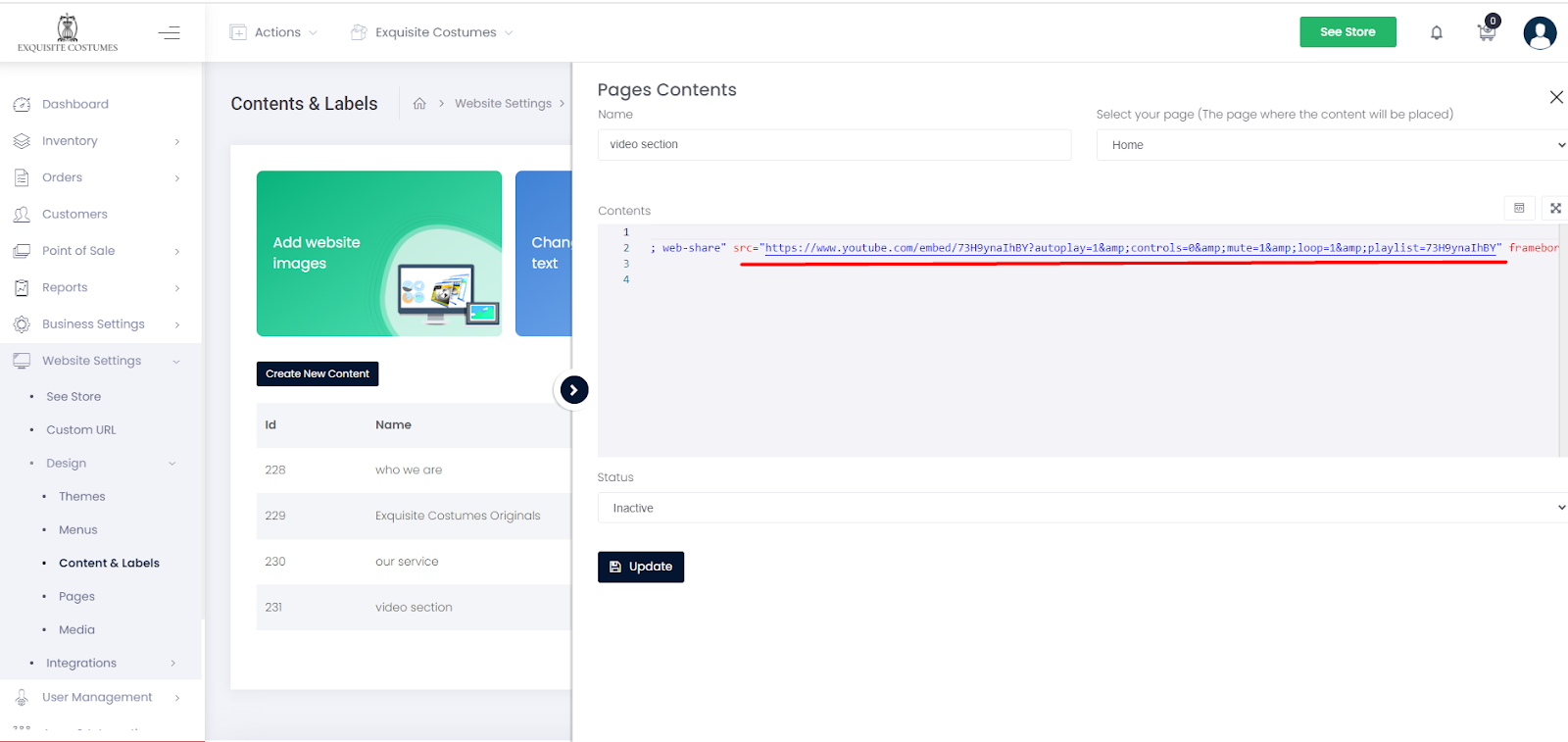
**
Be sure to click "Submit" or "Update" to save your changes.