

This guide walks you through connecting your RentMy account to your Squarespace website. Once the integration is complete, your Squarespace site will be able to display your RentMy catalog, accept bookings, and process payments — all without you needing to write any code.
If you have never done a website integration before, do not worry. We will walk through every click together. By the end, you will have a fully working rental store on your Squarespace site.
What This Integration Does
Connecting RentMy with Squarespace allows you to:
- Display your RentMy rental products directly on your Squarespace site
- Let customers add items to a cart, check out, and pay through your existing Squarespace pages
- Sync customer orders back to your RentMy dashboard automatically
- Redirect customers to custom success or cancellation pages after payment
Think of it like installing a small "RentMy engine" inside your Squarespace site. Once installed, everything runs in the background.
Before You Begin
Please make sure you have the following ready before starting. Having these on hand will make the setup take only a few minutes.
- An active RentMy account with admin access
- An active Squarespace site with permission to edit settings
- A Squarespace plan that supports Code Injection (this is required to add custom code — most paid Squarespace plans include it)
- Your Squarespace site URL (for example, https://yourshop.squarespace.com)
- Roughly 15–20 minutes of uninterrupted time
💡 Tip: Keep two browser tabs open — one for your RentMy admin panel, and one for your Squarespace site. You will be switching between them throughout this guide.

Step 1: Create a Squarespace App Inside RentMy
In this first step, you tell RentMy that you want to connect a Squarespace site. RentMy will then generate the special code your Squarespace site needs.
Why this matters
This step creates the secure link between RentMy and Squarespace. Without it, the two platforms cannot talk to each other.
What to do
- Log in to your RentMy admin dashboard.
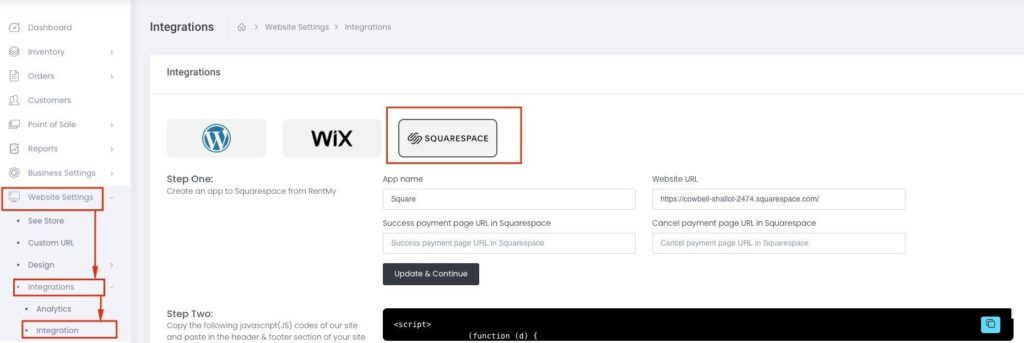
- Navigate to the Website Settings → Integrations → Integration area and select the Squarespace tab.
- You will see a form titled Step One: Create an app to Squarespace from RentMy. Fill in the four fields:
- App Name — Any name you like (for example, "My Rental Store"). This is only for your reference.
- Website URL — The full URL of your Squarespace site. Be sure to include https:// at the beginning.
- Success Payment Page URL in Squarespace — The page customers should land on after a successful payment (for example, https://yoursite.com/thank-you).
- Cancel Payment Page URL in Squarespace — The page customers should land on if they cancel their payment (for example, https://yoursite.com/cancelled).
- Click the Submit button at the bottom of the form.
What you should see
After clicking submit, the page should refresh and reveal Step Two and Step Three below the form. This means RentMy has saved your app details successfully.
Screenshot: RentMy admin — Step One form with Squarespace tab selected

⚠️ Common mistake: Do not type the success and cancel URLs as page names alone (such as /thank-you). Always use the full web address starting with https://.
Step 2: Add the RentMy Code to Your Squarespace Site
Now that RentMy knows about your Squarespace site, you need to add a small piece of code to Squarespace so it knows about RentMy. This is called Code Injection, and Squarespace has a dedicated place for it.
Why this matters
This code is what actually loads RentMy's features (catalog, cart, checkout) onto your Squarespace pages. Without it, your pages will not be able to show any RentMy content.
Part A: Copy the code from RentMy
- Stay on the Squarespace tab in RentMy.
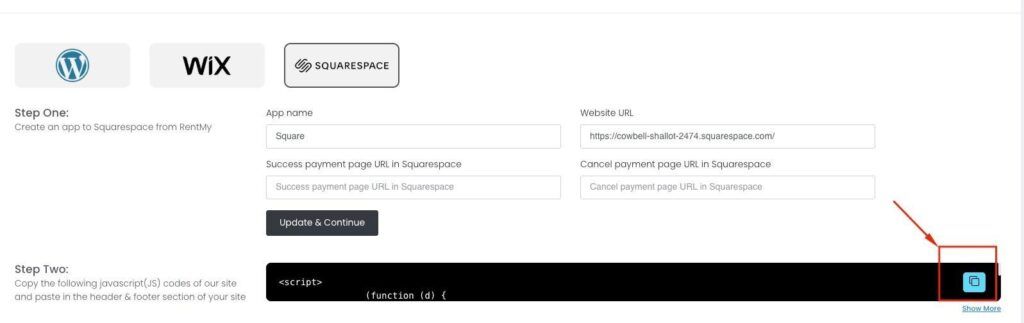
- Scroll down to Step Two. You will see a grey code box.
- Click Show more (on the right side of the code box) to expand the full code.
- Click the copy icon in the top-right corner of the code box. The full code is now copied to your clipboard.
Screenshot: RentMy — Step Two code box with copy icon (highlighted)
Part B: Paste the code into Squarespace
- Open your Squarespace dashboard in a new tab.
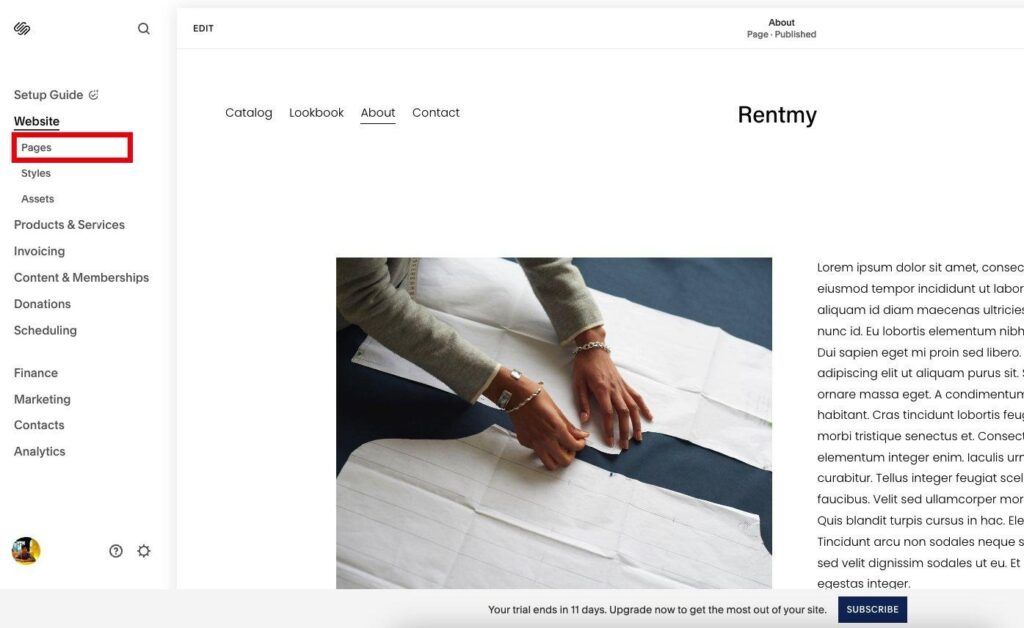
- In the left sidebar, click Website, then click Pages.
Screenshot: Squarespace dashboard — click Website > Pages in the left sidebar
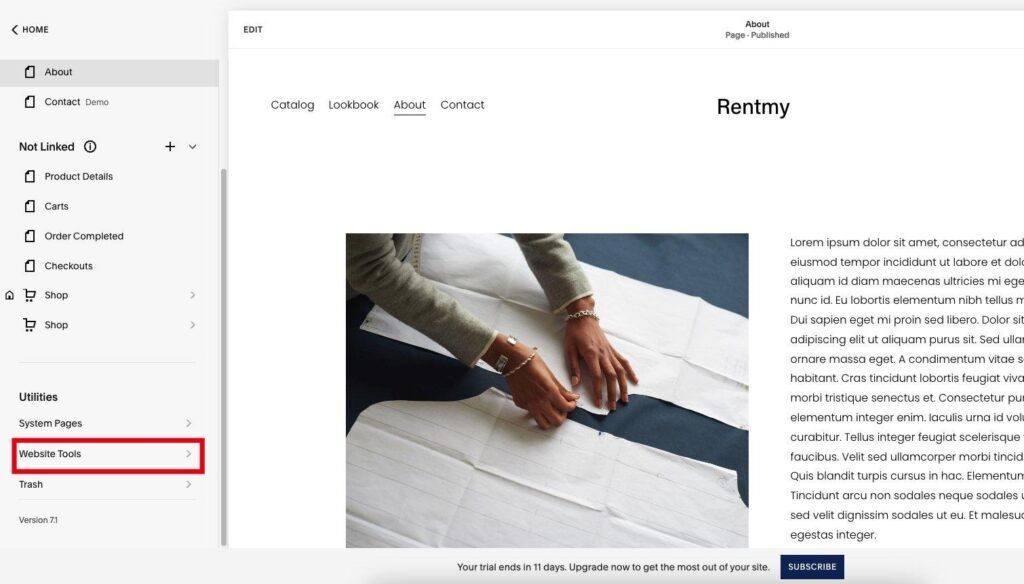
- Scroll to the bottom of the Pages panel. Under Utilities, click Website Tools.
Screenshot: Pages panel — scroll to Utilities and click Website Tools
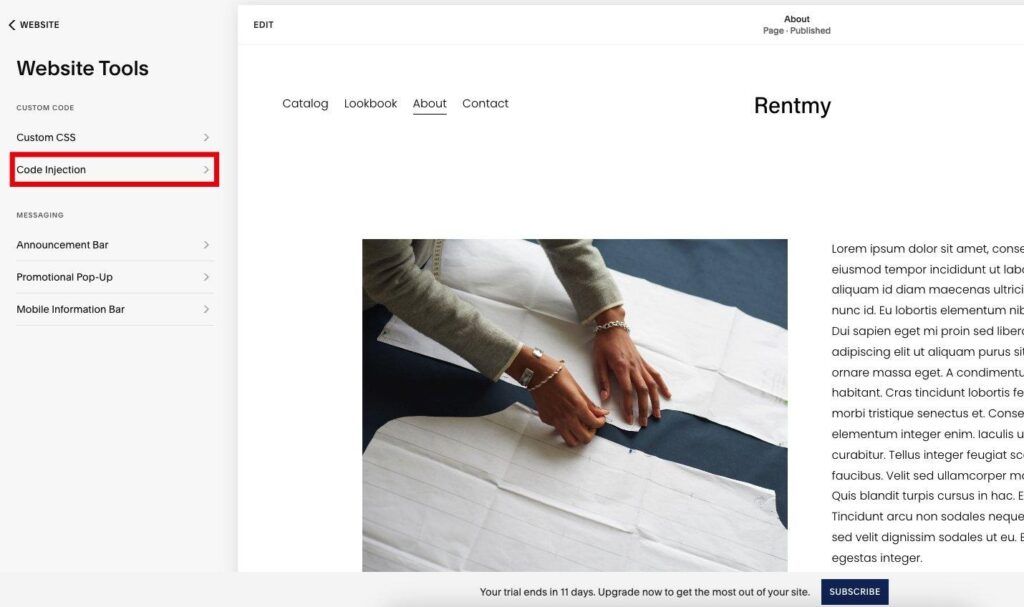
- Inside Website Tools, click Code Injection.
Screenshot: Website Tools panel — Code Injection option highlighted
- You will now see two code boxes: Header and Footer.
Screenshot: Code Injection page — Header and Footer code boxes
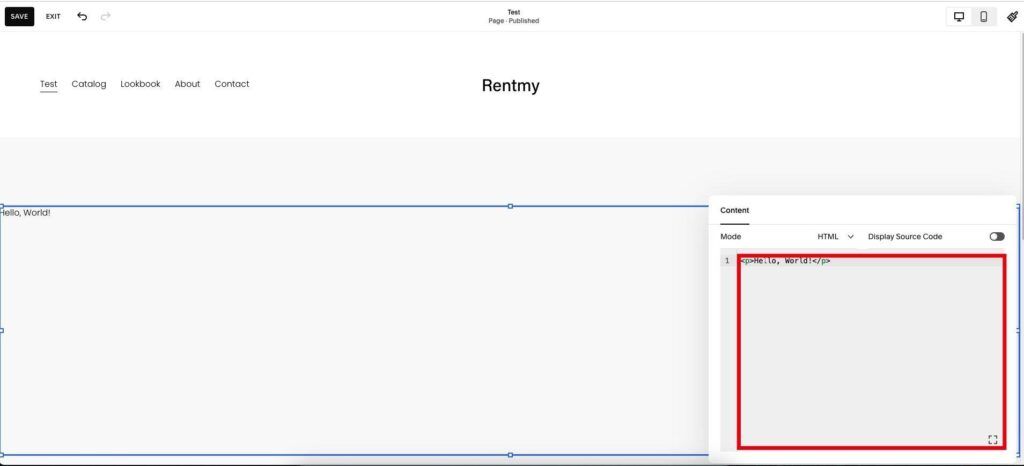
- Click inside the Header box and paste the code you copied from RentMy.
- Go back to RentMy. Below the Step Two code box, you will see a second smaller code snippet (a single
<script>tag with a URL). Click its copy icon. - Return to Squarespace and paste that snippet into the Footer box.
- Click Save in the top-left corner of the Code Injection page.
What you should see
Squarespace will confirm your changes are saved. The code is now active across every page of your site, although nothing visible has changed yet — that comes in Step 3.
💡 Tip: If your page slugs (URLs) in Squarespace are different from the defaults (for example, your catalog page is /shop instead of /catalog), you will need to update those slugs inside the header code so RentMy knows where each page lives. The code includes comments showing where to make these edits.
⚠️ Troubleshooting: If you do not see a Code Injection option, your Squarespace plan may not support it. You will need to upgrade to a paid plan. Squarespace shows an Upgrade badge above the Code Injection section in that case.
Step 3: Create the Pages That Will Display RentMy Content
The code from Step 2 prepared your site. Now you will create the actual pages where customers will see your products, shopping cart, checkout, and so on. RentMy provides ready-to-use HTML snippets for each page — you just paste them in.
Why this matters
Each RentMy page (Catalog, Product Details, Cart, Checkout, Order Completed, etc.) needs its own home on your Squarespace site. This step creates those homes.
What to do
- In Squarespace, go to Pages and create a new blank page for each RentMy page you want to add. Common pages include:
- Catalog
- Product Details
- Cart
- Checkout
- Order Completed
💡 Tip: The page slugs you create here must match the slugs you set in the Step 2 header code. For example, if your header code expects /catalog, name that page's URL catalog.
- Open the first page (for example, Catalog) and click Edit.
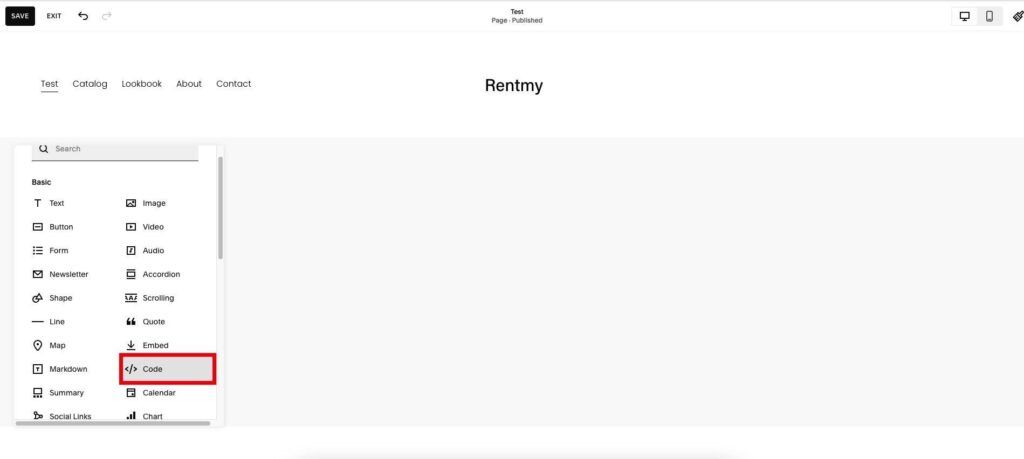
- Click the + (add block) button where you want the RentMy content to appear.
- From the block menu, select Code.
Screenshot: Squarespace block menu — select Code (highlighted in red)
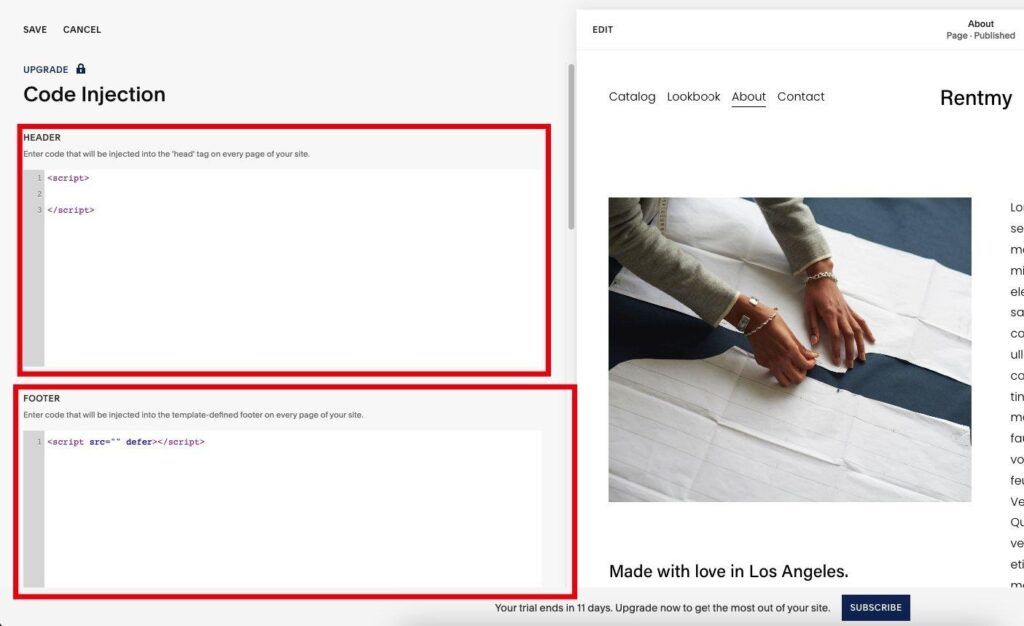
- A Code block will appear on the page, and a panel will open on the right.
- In the panel, make sure Mode is set to HTML.
- Delete any sample content (such as
<p>Hello, World!</p>) from the code area.
Screenshot: Code block editor with Mode set to HTML — clear this area and paste RentMy HTML
- Switch back to RentMy. Scroll to the bottom of the Squarespace integration page to the section called HTML Pages Contents.
- Click the page you want (for example, Catalog) to expand it. Click the copy icon to copy the HTML.
- Return to Squarespace and paste the HTML into the Code block.
- Click Save in the top-left corner of the Squarespace editor.
Repeat steps 2–11 for each remaining RentMy page (Product Details, Cart, Checkout, Order Completed).
What you should see
Once saved, the Code block will render the RentMy page on your live Squarespace site. The first time you load the page, give it a few seconds to fetch your products from RentMy.
⚠️ Common mistake: Make sure each piece of HTML is pasted into the matching Squarespace page. For example, the Cart HTML must go on the Cart page, not the Catalog page. Mixing them up will cause the wrong content to appear.
💡 Tip: You can style the surrounding page (header, footer, fonts, colors) using Squarespace's normal design tools. The RentMy block sits inside your existing design like any other Squarespace block.
Testing Your Integration
Before announcing your new shop, run through a quick test to make sure everything works.
- Open your Squarespace site in a private/incognito window (so you see what real visitors see).
- Visit your Catalog page. You should see your RentMy products listed.
- Click into a product to make sure the Product Details page loads correctly.
- Add an item to the cart and proceed through checkout.
- Complete a test payment (use a small amount or your platform's test mode if available).
- Confirm you are redirected to your Success Payment Page.
- Log in to your RentMy dashboard and check that the new order appears.
If all of the above works, your integration is fully live. 
Troubleshooting
The Catalog page is blank. The header code in Step 2 may not be saved, or the page slug does not match. Re-check your Squarespace Code Injection settings and confirm the slug names.
Customers are not redirected after payment. Double-check the Success and Cancel URLs you entered in Step 1. They must be full URLs starting with https:// and must point to real pages on your Squarespace site.
The RentMy block shows raw HTML instead of products. Make sure the Code block's Mode is set to HTML, not Markdown.
I do not see Code Injection in Squarespace. Your current plan does not support custom code. Upgrade to a paid Squarespace plan that includes Code Injection.
Changes are not showing up on the live site. Try a hard refresh in your browser (Ctrl+F5 on Windows, Cmd+Shift+R on Mac) or open the site in a private window to bypass cached files.
Integration Complete — Next Steps
Congratulations! Your RentMy store is now live on your Squarespace site. Here are a few things you may want to do next:
- Add your site navigation: Link the Catalog and other RentMy pages from your main Squarespace menu so visitors can find them easily.
- Customize the design: Use Squarespace's Styles editor to match the RentMy blocks to your brand fonts and colors.
- Set up email notifications: Configure RentMy to send order confirmations to you and your customers.
- Promote your shop: Share your new Catalog page on social media, email lists, and your homepage.
If you run into any issues that this guide does not cover, please reach out to the RentMy support team — we are happy to help.
RentMy HTML Page Snippets
Ready-to-use HTML snippets for embedding into your Squarespace site
This document contains every ready-to-use HTML snippet RentMy provides for embedding into your Squarespace (or other) site. Each section below corresponds to one page or widget on your storefront.
How to use this document
- Find the page or widget you want to add.
- Click the copy button on the code block.
- Paste the snippet into a Squarespace Code block (HTML mode) on the matching page.
💡 Tip: Always paste into a Squarespace Code block with Mode = HTML. Markdown mode will render the snippet as raw text instead of running it.
⚠️ Important: Each snippet must go on the page whose slug matches the one configured in your header injection code. For example, the Cart snippet belongs on a page with the slug /cart.
Storefront Pages
Catalog with Filters
The full product catalog page, complete with a left sidebar for category browsing, price/quantity/name filters, rent-vs-buy toggle, and a sort-by dropdown. Use this when you want shoppers to be able to refine the product list.
Suggested page slug: /catalog
<div class="RentMyWrapperProductList RentMyWrapper" RentMyData="limit=21"> <div class="RentMyProductRow RentMyProductListRow"> <div class="RentMyFilterArea" RentMyFilterArea> <div class="RentMyFilterAreaInner"> <div class="RentMyCategory"> <h3 class="RentMyFilterTitle">Category</h3> <div class="CategoryMenuList scrollbar"> <ul class="CategoryMenu" RentMyFilterByCategory> <li><a href="#"><span>Choose One</span> <i class="fa fa-angle-right"></i></a></li> </ul> </div> </div> <div class="RentMyFilter"> <div class="RentMyFilterList"> <h3 class="RentMyFilterTitle">Filter</h3> <div class="FilterCheckbox scrollbar" RentMyFilterByTag> <label class="RentMyCheckbox"> <input type="checkbox"><span> </span> <a href="#">Price</a> </label> <label class="RentMyCheckbox"> <input type="checkbox"><span> </span> <a href="#">Quantity</a> </label> <label class="RentMyCheckbox"> <input type="checkbox"><span> </span> <a href="#">Name</a> </label> </div> </div> <div class="RentMyPriceArea"> <h3 class="RentMyFilterSubTitle">Price</h3> <div class="RentMyPrice"> <div class="RentMyRow" RentMyFilterByPrice> <div class="RentMyInputGroup RentMyHalfwidth"> <label>Min</label> <input type="text" class="RentMyInputField" RentMyMinPrice id/> </div> <div class="RentMyInputGroup RentMyHalfwidth"> <label>Max</label> <input type="text" class="RentMyInputField" RentMyMaxPrice /> </div> <div class="RentMyButtonGroup RentMyNotBetween"> <button class="RentMyBtn RentMyBtnBlack" RentMyMinMaxSubmitBtn>Submit</button> <button class="RentMyBtn RentMyBtnRed" RentMyMinMaxClearBtn>Clear</button> </div> </div> </div> </div> <div class="RentMyTypeArea"> <h3 class="RentMyFilterSubTitle">Type</h3> <div class="RentMyType" RentMyFilterByRentalType> <label class="RentMyRadio"> <input type="radio" name="RentalType" value="rent" /> Rent <span></span> </label><br /> <label class="RentMyRadio"> <input type="radio" name="RentalType" value="buy" /> Buy <span></span> </label><br /> <label class="RentMyRadio"> <input type="radio" name="RentalType" value="all" /> All <span></span> </label> </div> </div> </div> </div> </div> <!-- Product Area --> <div class="RentMyProductArea"> <div class="RentMyRow SortProductRow"> <div class="SortProduct"> <label>Sort By</label> <select class="RentMyInputField" RentMyShortByDropdown> <option value="sort_by=product_name&sort_dir=ASC"> Product name A-Z</option> <option value="sort_by=product_name&sort_dir=DSC"> Product name Z-A</option> <option value="sort_by=rent_price&sort_dir=ASC"> Rental price low to high</option> <option value="sort_by=rent_price&sort_dir=DSC"> Rental price high to low</option> <option value="sort_by=buy_price&sort_dir=ASC"> Sale price low to high</option> <option value="sort_by=buy_price&sort_dir=DSC"> Sale price high to low</option> </select> </div> </div> <div class="RentMyRow"> <div class="RentMyProductItem" RentMyProductItemSample> <div class="RentMyProductItemInner"> <div class="RentMyProductImg"> <a href="#" RentMyProductImageUrl> <img RentMyProductImage src="" class="ProductImg" alt="" /> </a> <div class="RentMyProductOverlay"></div> </div> <div class="RentMyProductBody"> <h4 class="ProductName" RentMyProductName> <a href="#">{{ product_name }}</a> </h4> <h5 class="ProductPrice" RentMyProductPrice> {{ product_price }} </h5> <div class="ProductButton"> <a class="ProductDetailsBtn" href="#" RentMyViewDetailsBtn>View Details</a> <button class="ProductCartBtn" href="#" RentMyAddToCartBtn>Add to Cart</button> </div> </div> </div> </div> </div> </div> </div></div>
Catalog without Filter
A simpler catalog page that shows the sort-by dropdown and the product grid only — no sidebar filters. Good for stores with a small or curated inventory where filters are not needed.
Suggested page slug: /catalog
<div class="RentMyWrapperProductList RentMyWrapper" RentMyData="limit=21"> <div class="RentMyProductRow RentMyProductListRow"> <!-- Product Area --> <div class="RentMyProductArea"> <div class="RentMyRow SortProductRow"> <div class="SortProduct"> <label>Sort By</label> <select class="RentMyInputField" RentMyShortByDropdown> <option value="sort_by=product_name&sort_dir=ASC"> Product name A-Z</option> <option value="sort_by=product_name&sort_dir=DSC"> Product name Z-A</option> <option value="sort_by=rent_price&sort_dir=ASC"> Rental price low to high</option> <option value="sort_by=rent_price&sort_dir=DSC"> Rental price high to low</option> <option value="sort_by=buy_price&sort_dir=ASC"> Sale price low to high</option> <option value="sort_by=buy_price&sort_dir=DSC"> Sale price high to low</option> </select> </div> </div> <div class="RentMyRow"> <div class="RentMyProductItem" RentMyProductItemSample> <div class="RentMyProductItemInner"> <div class="RentMyProductImg"> <a href="#" RentMyProductImageUrl> <img RentMyProductImage src="" class="ProductImg" alt="" /> </a> <div class="RentMyProductOverlay"></div> </div> <div class="RentMyProductBody"> <h4 class="ProductName" RentMyProductName> <a href="#">{{ product_name }}</a> </h4> <h5 class="ProductPrice" RentMyProductPrice> {{ product_price }} </h5> <div class="ProductButton"> <a class="ProductDetailsBtn" href="#" RentMyViewDetailsBtn>View Details</a> <button class="ProductCartBtn" href="#" RentMyAddToCartBtn>Add to Cart</button> </div> </div> </div> </div> </div> </div> </div></div>
Customized Catalog
The catalog wrapper accepts a RentMyData attribute that lets you control which products are shown, sort order, pagination, and more. Add any combination of the keys below.
Supported keys
| Key | Description | Example |
|---|---|---|
| limit | Number of products per page | limit=10 |
| products | Specific product IDs (comma-separated) | products=170720,186414,193913 |
| search | Search query (escape spaces with \s) | search=test\sproduct |
| category | Category ID to filter by | category=a311cc3b66c011ea8261... |
| tags | Tag IDs (comma-separated) | tags=668,4960,164,163 |
| sortBy | Field to sort by | sortBy=product_name (also rent_price, buy_price) |
| sort | Sort direction | sort=ASC or sort=DESC |
| onLoad | Load behavior | onLoad=paginate |
Example
<div class="RentMyWrapperProductList RentMyWrapper" RentMyData="limit=10">
💡 Tip: Combine multiple keys by separating them with &, for example: RentMyData="limit=10&sortBy=rent_price&sort=ASC".
Product Details
Shown when a customer clicks a product. Displays an image gallery, name, price, rent-vs-buy toggle, recurring pricing, variants, rental date range, delivery options, quantity selector, and the "Add to Cart" button.
Suggested page slug: /product-details
<div class="RentMyWrapperProductDetails RentMyWrapper" RentMyData=""> <div class="RentMyProductDetailsRow"> <div class="RentMyProductDetilsImg"> <div class="RentMyProductDetailsImgList"> <ul RentMyProductImages> <li class="ActiveImg"><img src="" alt="" /></li> <li><img src="" alt="" /></li> <li><img src="" alt="" /></li> <li><img src="" alt="" /></li> </ul> </div> <div class="RentMyProductDetailsImgShow"> <img RentMyProductImage src="" alt="" /> </div> </div> <div class="RentMyProductDetilsInfo" RentMyProductDetilsInfo> <div class="product-payment-details"> <h2 class="RentMyProductName" RentMyProductName product_name>Product Name</h2> <div class="RentMyBuyRentToggle" RentMyBuyRentToggle> <label for="BuyRentToggleSwitch" class="BuyRentToggleSwitch"> <input type="checkbox" id="BuyRentToggleSwitch" BuyRentToggleSwitch /> <div class="ToggleSwitchRound"></div> </label> </div> <h2 class="RentMyProductPrice" RentMyProductPrice product_price_text>$0.00</h2> <!-- Recurring Pricing, Variants, Rental Date Range, Delivery Options, Select Location, Quantity, Add to Cart button — all included in full snippet --> <div class="RentMyCartBtnArea" RentMyCartBtnArea> <button class="RentMyBtn RentMyAddCartBtn" RentMyAddCartBtn>ADD TO CART</button> </div> </div> </div> </div> <div class="RentMyProductDescription"> <h3 class="RentMyProductDesTitle">Product Description</h3> <div class="RentMyProductDesBody" RentMyProductDescription></div> </div></div>
Package Details
Same as Product Details, but tailored for package products — items that bundle multiple SKUs together. Includes a "Package includes" section listing the bundled products and their variants, plus a Related Products grid at the bottom.
Suggested page slug: /package-details
<div class="RentMyWrapperPackageDetails RentMyWrapper" RentMyData=""> <div RentmyPackageComponent> <div class="RentMyProductPackageRow"> <!-- Image gallery, product info, buy/rent toggle, pricing, variants, date range, delivery options, quantity, Add to Cart — same structure as Product Details above --> <div class="RentMyProductPackageArea" RentMyProductPackageArea> <div class="RentMyProductPackageAreaInner" RentMyProductPackageAreaInner> <h6 RentMyProductPackageAreaTitle> Package includes</h6> <div RentMyProductPackageContent></div> <div class="PackageSingleProduct" PackageSingleProduct> <div class="PackageProductName" PackageProductName> <h5 PackageProductNameTitle> test product buy (2)</h5> </div> <div class="PakageProductVarient" PakageProductVarient> <select class="form-control" PakageProductVarientInnerSelect> <option value="276077"> size: Blue, color: red </option> </select> </div> </div> </div> </div> </div> </div> <div class="RentMyProductDescription"> <h3 class="RentMyProductDesTitle">Product Description</h3> <div class="RentMyProductDesBody" RentMyProductDescription></div> </div> <div class="RentMyRelatedProduct"> <h3 class="RentMyRelatedProductTitle"> Related Products</h3> <div class="RentMyRelatedProductBody"> <div class="RentMyRow" RentMyRelatedProducts> <!-- Product item cards rendered here --> </div> </div> </div></div>
Cart
The full cart page: add-on product recommendations, rental date editor, line-item table with quantity controls, coupon input, totals breakdown (subtotal, deposit, shipping, tax, delivery tax), and the "Proceed to Checkout" button.
Suggested page slug: /cart
<div class="RentMyCartWrapper RentMyWrapper"> <div class="container-fullwidth" InsideContainer> <div class="RentMyAddonProducts RentMyRelatedProduct" RentMyRelatedProducts> <h3 class="RentMyRelatedProductTitle"> Add-On Products</h3> <!-- Add-on product cards rendered here --> </div> <div class="RentMyRow" RenatalDateArea> <span class="RentMyCartDateRange" DateRange> <b>Rental Dates</b> <span DateText>11/22/2023</span> <i class="fa fa-edit date-editicon" EditDate></i> </span> </div> <table class="RentMyTable RentMyCartTable" RentMyCartTable> <thead> <tr> <th></th><th></th><th>Product</th> <th>Unit Price</th><th>Quantity</th><th>Subtotal</th> </tr> </thead> <tbody> <tr CartItem> <td DeleteIconArea>... </td><td ImageArea>... </td><td ItemNameArea>Product1 </td><td ItemPrice>$50.00 </td><td IncrDecrArea>... </td><td ItemPriceArea>$255.00</td> </tr> </tbody> </table> <div class="RentMyRow RentMyCartSummery"> <!-- Coupon input, Continue Shopping, Proceed to Checkout buttons --> <!-- Cart Totals: Subtotal, Deposit, Shipping, Tax, Delivery Tax, Total --> </div> </div></div>
Checkout
The checkout page. Collects billing info, fulfillment selection (pickup / shipping / delivery), order summary, optional services, terms acceptance, signature pad, and the "Place Order" button.
Suggested page slug: /checkout
<div id="RentMyCheckoutWrapper" class="RentMyCheckoutWrapper RentMyWrapper"> <div class="RentMyRow"> <div class="CheckoutLeftSide"> <!-- Returning customer sign-in prompt --> <div class="BillingDetailsLeftside"> <span class="BillingCheckoutTitle"> Billing Details</span> <form> <!-- First Name, Last Name, Mobile, Email, Company, Country, Address Lines, City, State, Zipcode fields --> <!-- Additional Information section --> <!-- Custom checkout information section --> </form> </div> <div class="FullfillmentArea" FullfillmentArea> <h2 class="BillingCheckoutTitle">Fulfillment</h2> <ul> <li PickupTab></li> <li ShippingTab></li> <li DeliveryTab></li> </ul> <!-- Pickup / Shipping / Delivery content areas --> </div> </div> <div class="CheckoutRightSide" OrderSummary> <!-- Order summary, optional services, totals table, terms checkbox, signature pad, Place Order button --> <button type="button" class="RentMyBtn RentMyPlaceOrder" PlaceOrderBtn>Place Order</button> </div> </div></div>
Order Complete
The "thank you" page customers see after a successful payment. Shows quick links to download the receipt, add the rental to their calendar, view full order details, and a summary table.
Suggested page slug: /order-complete (must match your Success Payment Page URL from Step 1 of integration)
<div class="RentMyOrderCompleteWrapper RentMyWrapper" id="RentMyOrderCompleteWrapper"> <div Tabs> <div class="RentMyRow"> <div class="RentMyFullwidth MessageTitle"> <h1>Thank You <br /> <span>for your order</span> </h1> </div> </div> <div class="RentMyRow OrderCompleteRow"> <div class="OrderCompleteBox" PdfImageDiv> <img src="" alt="Download Receipt" ImageDownloadPDF /> <h3>Download Receipt</h3> </div> <div class="OrderCompleteBox" CalendarImageDiv> <img src="" alt="Save to Calender" ImageAddToCalendar /> <h3>Add to calendar</h3> </div> <div class="OrderCompleteBox" DetailsImageDiv> <img src="" alt="View order details" ImageViewDetails /> <h3>View Details</h3> </div> </div> </div> <div class="RentMySummaryWrapper" OrderSummary> <!-- Order summary table with items, --> <!-- Optional services, totals breakdown --> <div class="AfterOrderPageFooter" AfterOrderPageFooter></div> <div class="OrderDetailsBack"> <button Back>Back</button> </div> </div></div>
Customer Account Pages
These pages power the customer-facing portal: login, signup, profile management, order history, and password tools.
Login
Suggested page slug: /login
<div id="RentMyCustomerLoginContainer" class="RentMyWrapper"> <div class="LoginElement"> <h3 class="LoginTitle">Already Registered?</h3> <div class="RentMyAlertMessage"></div> <form class="RentMyFrom" id="RentMyCustomerLoginForm"> <div class="RentMyInputGroup"> <input type="text" name="email" class="RentMyInputField" placeholder="Email" /> </div> <div class="RentMyInputGroup"> <input type="password" name="password" class="RentMyInputField" placeholder="Password" /> </div> <div class="RentMyButtonGroup"> <button type="submit" class="RentMyBtn LoginBtn">Log in</button> <div class="RentMyButtonGroup"> <a href="#" class="ForgotPassword" RentMyPageLink="reset_password">Forgot Password?</a> <a href="#" class="NewAccount" RentMyPageLink="registration">Sign Up</a> </div> </div> </form> </div></div>
Registration
Suggested page slug: /registration
<div id="RentMyCustomerRegistrationContainer" class="RentMyWrapper"> <div class="RegistrationElement"> <h3 class="RegistrationTitle">Signup</h3> <div class="RentMyAlertMessage"></div> <form class="RentMyFrom" id="RentMyCustomerRegistrationForm"> <div class="RentMyRow"> <!-- First Name, Last Name, Email, Company Name, Contact Name, Password, Confirm Password, Address Line 1 & 2, Country, City, State, Zipcode fields --> <div class="RentMyButtonGroup RentMyHalfwidth"> <button type="submit" class="RentMyBtn RegistrationBtn">Sign up</button> <a href="#" class="LoginHere" RentMyPageLink="login">Login here</a> </div> </div> </form> </div></div>
Customer Profile
Displays the logged-in customer's information and saved addresses. Includes edit forms for both.
Suggested page slug: /customer-profile
<div id="RentMyCustomerProfileContainer" class="RentMyWrapper RentMyCustomerPortalWrapper"> <div class="RentMyCustomPortalRow"> <div class="RentMyRightContent"> <div class="RentMyPageHeader"> <h3>Profile Information</h3> </div> <div class="RentMyContentBody"> <div class="RentMyCustomerInfo" id="RentmyCustomerDetailsSection"> <div class="RentmyCustomerDetails"> <h5>{{ customer_name }}</h5> <span>{{ customer_email }}</span><br> <span>{{ customer_company_name }}</span><br> <span>{{ customer_phone }}</span> </div> <a id="RentmyCustomerEditBtn" href="#" class="RentMyBtn RentMyEditBtn" EditButton>Edit</a> </div> <!-- Edit form and address management below --> </div> </div> </div></div>
Reset Password
Standalone page where users can request a password reset by entering their email.
Suggested page slug: /reset-password
<div id="RentMyResetPasswordContainer" class="RentMyWrapper"> <div class="Contents"> <div class="card-body pb-4"> <div class="userlogin-box"> <div class="Describer"> <img src="https://teststore05.rentmy.shop/assets/img/home/forgot.png" alt="forgot password"> <h1 class="Title" Title> It happens to all of us.</h1> <p SubTitle>Enter your email to reset your password</p> </div> <form> <input type="email" class="RentMyInputField" placeholder="Email*" Email/> <input type="password" class="RentMyInputField" placeholder="New Password" Password/> <input type="password" class="RentMyInputField" placeholder="Confirm Password" ConfirmPassword/> <div class="d-flex justify-content-center RentMyButtonGroup"> <button type="submit" class="RentMyBtn RentMyBackBtn RentMySubmitBtn" RentMySubmitBtn>Submit</button> <button type="submit" class="RentMyBtn RentMyBackBtn RentMyReturnBtn" RentMyReturnBtn>Return</button> </div> </form> </div> </div> </div></div>
Change Password
For logged-in customers to update their password.
Suggested page slug: /customer-change-password
<div id="RentMyCustomerChangePasswordContainer" class="RentMyWrapper RentMyCustomerPortalWrapper"> <div class="RentMyCustomPortalRow"> <div class="RentMyRightContent"> <div class="RentMyPageHeader"> <h3>Change Password</h3> </div> <form id="RentMyChangePasswordForm"> <div class="RentMyInputGroup RentMyFullwidth"> <label>Old Password</label> <input type="password" class="RentMyInputField" name="old_password" /> </div> <div class="RentMyInputGroup RentMyFullwidth"> <label>New Password</label> <input type="password" class="RentMyInputField" name="password" /> </div> <div class="RentMyInputGroup RentMyFullwidth"> <label>Confirm Password</label> <input type="password" class="RentMyInputField" name="confirm_password" /> </div> <button id="RentMyChangePasswordSubmit" type="button" class="RentMyBtn RentMyPassSubmitBtn">Submit</button> </form> </div> </div></div>
Change Avatar
Lets the logged-in customer upload a profile picture (max 2 MB).
Suggested page slug: /customer-change-avatar
<div id="RentMyCustomerChangeAvatarContainer" class="RentMyWrapper RentMyCustomerPortalWrapper"> <div class="RentMyCustomPortalRow"> <div class="RentMyRightContent"> <div class="RentMyPageHeader"> <h3>Change Avatar</h3> </div> <form id="RentMyFileUploadForm"> <div class="RentMyInputGroup RentMyFullwidth"> <label>Upload Image (Maximum file size 2MB)</label> <div class="RentMyFileUpload" FileUploadArea> <div class="FileSelect"> <div class="FileSelectButton"> Choose File</div> <div class="FileSelectName" FileName> No file chosen...</div> <input type="file" name="chooseFile"> </div> </div> </div> <button id="RentMyFileUploadSubmitBtn" type="button" class="RentMyBtn RentMyUploadBtn">Upload</button> </form> </div> </div></div>
Customer Order History
Lists every past order with a link to view its details. Includes a left sidebar menu linking to the other customer-portal pages.
Suggested page slug: /customer-order-history
<div id="RentMyCustomerOrderHistory" class="RentMyWrapper RentMyCustomerPortalWrapper"> <div class="RentMyCustomPortalRow"> <div class="RentMyLeftSidebarmenu"> <div class="RentMyLeftSidebarmenuInner"> <div class="RentMyProfileImge"> <img rentmy_customer_profile_image="true" src="...profile.png" alt=""> </div> <h5 class="RentMyProfileName">{{ customer_name }}</h5> <div class="RentMySideMenu"> <ul> <li><a RentMyPageLink="customer_profile"> Profile</a></li> <li><a RentMyPageLink="customer_change_password"> Change Password</a></li> <li><a RentMyPageLink="customer_change_avatar"> Change Avatar</a></li> <li><a RentMyPageLink="customer_order_history" class="active">Order History</a></li> <li><a class="rentmy_logout_btn"> Logout</a></li> </ul> </div> </div> </div> <div class="RentMyRightContent"> <h3>Order History</h3> <table class="RentMyTable RentMyTableStriped"> <thead> <tr> <th>Order ID</th><th>Address</th> <th>Quantity</th><th>Price</th> <th>Status</th><th>Action</th> </tr> </thead> <tbody> <tr> <td>{{id}}</td> <td>{{order_address}}</td> <td>{{total_price}}</td> <td>{{total_price}}</td> <td>{{status}}</td> <td></td> </tr> </tbody> </table> <div id="RentMyPagination"></div> </div> </div></div>
Customer Order Details
Drill-down view of a single order: summary, billing/shipping addresses, line items, payments table, and a notes section where the customer can attach comments or files.
Suggested page slug: /customer-order-details
<div id="RentMyCustomerOrderDetails" class="RentMyWrapper RentMyCustomerPortalWrapper"> <div class="RentMyCustomPortalRow"> <!-- Left sidebar (same as Order History) --> <div class="RentMyRightContent"> <h3>Order Details: #<span>{{order_id}}</span></h3> <!-- Summary card: order_id, quantity, payment status, status, date, subtotal, delivery charge, discount, tax, grand total --> <!-- Billing & Shipping Details card --> <!-- Inventory Items table --> <!-- Payments table: total_payment_amount, total_paid_amount, total_due_amount, payment rows --> <!-- Notes section with textarea, file upload, notes history table --> </div> </div></div>
Widgets & Functions
These are small, reusable snippets you can drop into headers, navigation bars, or any page where you need just one piece of RentMy functionality.
Bottom Mini Cart
A floating mini cart that stays at the bottom of the screen and shows what the customer has added so far. Add it to any page where you want shoppers to see their cart at a glance.
<div class="RentMyWrapperInpageCartWidget RentMyWrapper"></div>
Search Widget
A standalone search bar you can place in your header or anywhere else on the site. RentMy will automatically wire it up to search your catalog.
How to use: Add the attribute rentmy-search-widget to any <div>.
<div rentmy-search-widget style="width:100%"></div>
Logout Function
Turns any link or button into a "Log out" trigger. RentMy will handle clearing the customer session when it is clicked.
How to use: Add the class rentmy_logout_btn to the element.
<a class="rentmy_logout_btn">Logout</a>
Quick Reference Table
| Page / Widget | Type | Where it goes |
|---|---|---|
| Catalog with Filters | Page | /catalog |
| Catalog without Filter | Page | /catalog |
| Customized Catalog | Config | Modifies catalog wrappers |
| Product Details | Page | /product-details |
| Package Details | Page | /package-details |
| Cart | Page | /cart |
| Checkout | Page | /checkout |
| Order Complete | Page | /order-complete |
| Login | Page | /login |
| Registration | Page | /registration |
| Reset Password | Page | /reset-password |
| Customer Profile | Page | /customer-profile |
| Change Password | Page | /customer-change-password |
| Change Avatar | Page | /customer-change-avatar |
| Customer Order History | Page | /customer-order-history |
| Customer Order Details | Page | /customer-order-details |
| Bottom Mini Cart | Widget | Anywhere |
| Search Widget | Widget | Header / anywhere |
| Logout Function | Function | Any link or button |
Need help? Reach out to the RentMy support team and we'll get you sorted.