

Explore the Content
- Set Up Google Search Console
- What is Google Search Console?
- How to Set Up Google Search Console for Your Rental Business
- Submit Your Rental Website Sitemap
- Request Indexing for Key Pages
- Optimize Your Pages for Indexing
- Monitor Indexing Status in GSC
- Check the Coverage Report
- Review the Performance Report
- Fix Common Indexing Issues
- Encourage Faster Indexing with External Signals
- Common Indexing Issues & Troubleshooting
- Conclusion
- FAQs
Do your rental pages look perfect but never show up in search results? Wondering why your fresh listings aren’t getting the Google love they deserve? If you want to get your rental website indexed reliably, you’ve come to the right place!
Visibility is everything. With Google pulling in over 84 billion visits a month, millions of renters are searching for their next home every single day. Only indexed pages get a shot at that spotlight.
This guide will show you how to submit your site, lead Google to your key pages, and check what gets indexed. We'll also help you avoid common technical issues that cause delays. Let's get started.
Set Up Google Search Console

Before Google can index your rental website, it needs a clear signal that you own and manage it. This is exactly when Google Search Console becomes essential. It acts like a control panel that shows how your site appears in search and whether Google can read it properly.
What is Google Search Console?
Google Search Console is a free tool that helps website owners track indexing, spot technical issues, and submit important pages for review. For rental businesses, it is especially useful because it shows whether your listings, categories, and blog posts are visible in Google results.
Google Search Console plays a major role in SEO for rental businesses by helping verify whether listings or categories are properly indexed. This ensures potential customers can easily find your rental website through online searches.
How to Set Up Google Search Console for Your Rental Business
Setting up Google Search Console for your website is simple and only takes a few minutes. Here's how to get started:
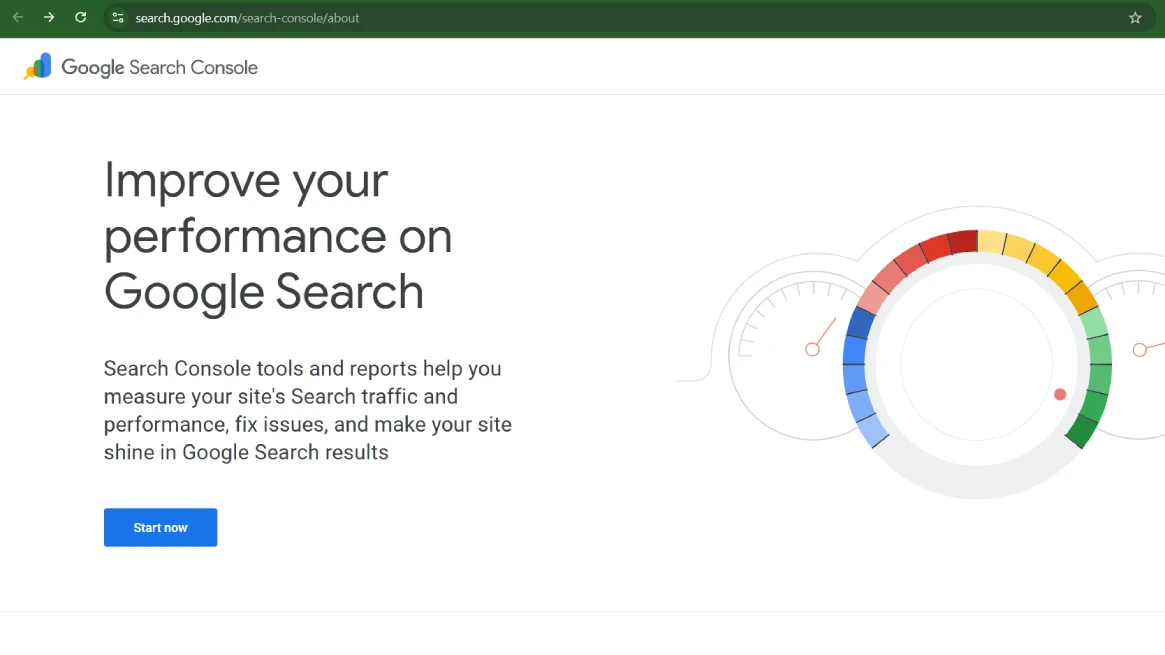
- Log in to Google Search Console
Open Google Search Console in your browser and sign in with your Google account.
- Add your website
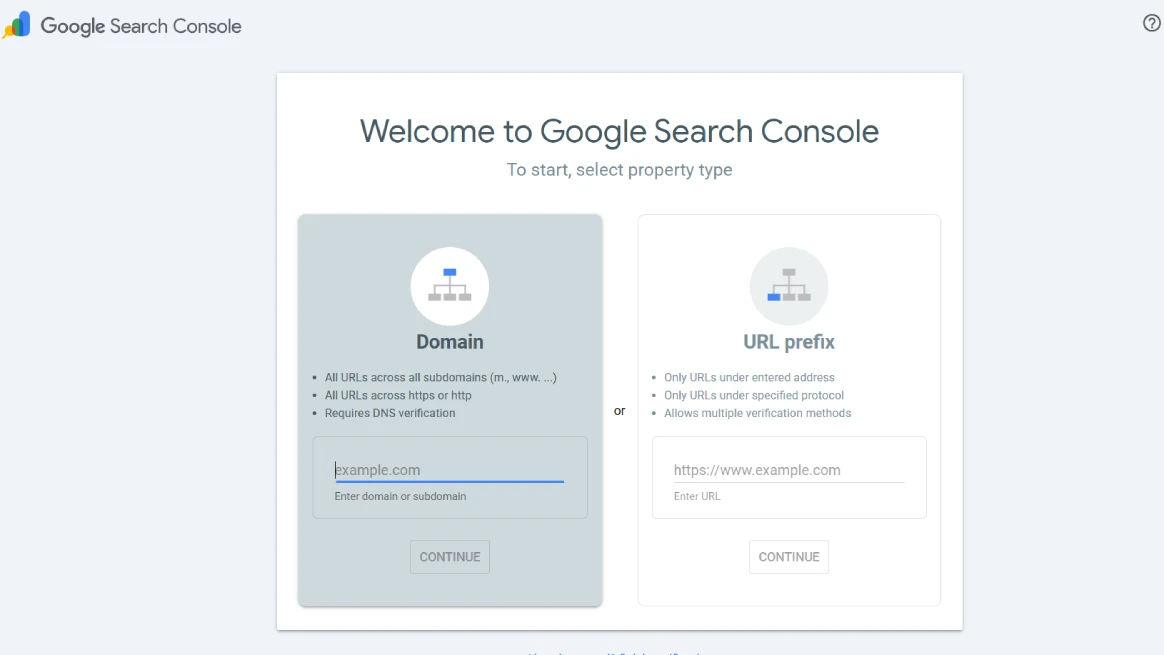
As soon as you log into your account, you'll see the "Add Property" option. You can either:
- Add your full domain: This covers all versions of your site (e.g., www, non-www, HTTP, and HTTPS), including subdomains.
- Add a specific URL prefix: This is ideal if you want to manage just one version of your site, for example
https://yourwebsite.com.
- Verify ownership
Once you add your property, Google will ask you to verify that you own the website. This step ensures only authorized users can access your site's search data.
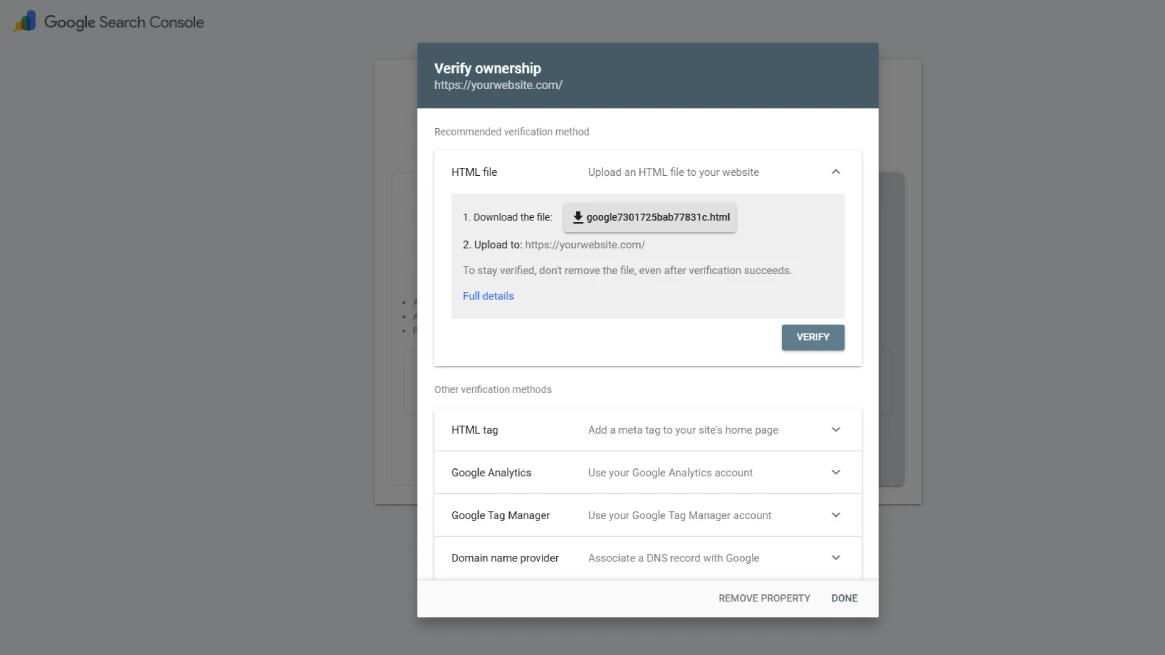
You only need to complete one of the verification methods below.
HTML File Upload (Recommended for Most Websites)
This method is considered the safest and most widely adopted. Here's how to do it:
- Download the HTML verification file provided by Google.
- Upload the file to your website’s root directory (usually called
public_html) using your hosting panel or file manager. - Return to Search Console and click Verify.
Note:
- Do not rename the file.
- Do not place it inside another folder.
- It must be accessible directly from your main domain.
If uploaded correctly, verification happens instantly.
HTML Tag Method
If you can edit your website’s code or access your site’s header:
- Copy the meta tag provided by Google.
- Paste the code within the
<head>area of your homepage. - Save your changes.
- Return to Search Console and click Verify.
Google will confirm ownership once it detects the tag.
Google Analytics Verification (If Already Installed)
If Google Analytics is already installed on your website using the same Google account:
- Select the Google Analytics verification option.
- Search Console will automatically check for the tracking code.
- If detected, ownership is confirmed instantly.
This is the fastest option if Analytics is already set up properly.
DNS Record Verification
This method is best if you select Domain Property and want full domain coverage.
- Copy the TXT record provided by Google.
- Sign into the platform where your domain is registered.
- Add the TXT record to your DNS settings.
- Save your changes and wait for DNS updates.
- Return to Search Console and click Verify.
DNS updates may take a few minutes to several hours to process.
Once verification is successful, your rental website is fully connected to Google Search Console. Google will start collecting data, allowing you to monitor performance, track indexing, and identify issues. The next recommended step is submitting your sitemap to help Google index your rental listings more efficiently.
Submit Your Rental Website Sitemap
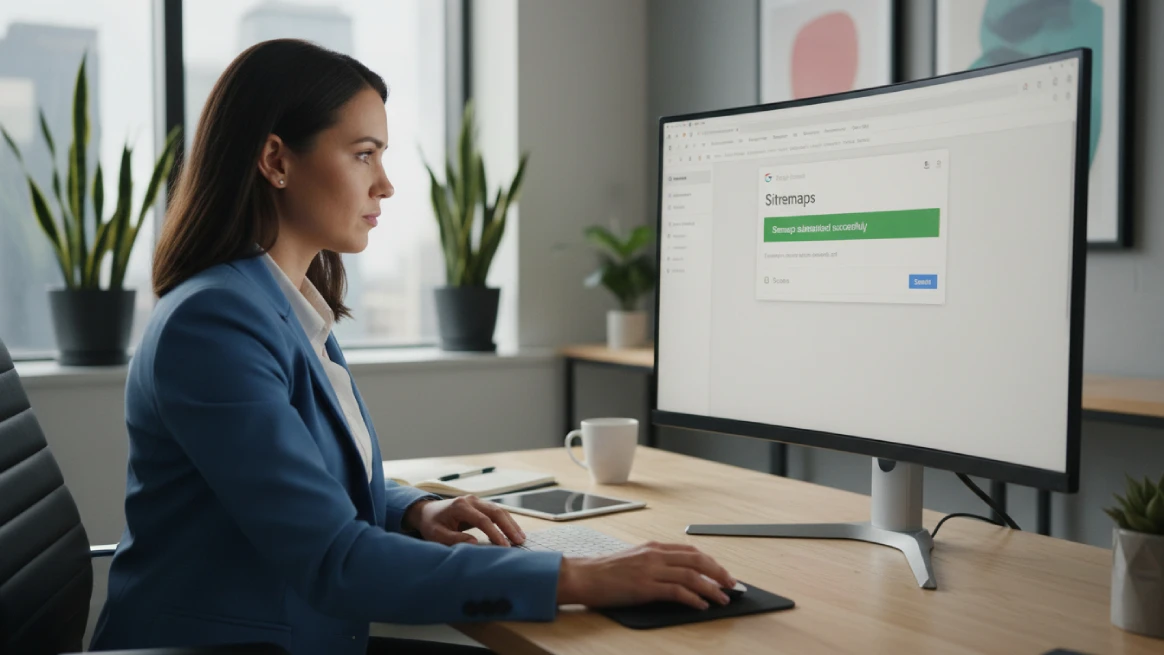
Once your site is verified, the next goal is to help Google understand its structure.
A sitemap works as a guide for your website and shows Google your key pages and how often they're updated.
For a rental business, this might include your homepage, rental listings, category pages, and blog posts. It helps Google find new pages quickly, which is especially useful when listings frequently change.
If you're using RentMy, the platform automatically generates a sitemap as part of its SEO tools. To find it, log into your RentMy dashboard and check the SEO or marketing settings. Your sitemap will usually follow a format like https://yoursite.rentmy.co/sitemap.xml.
If you use WordPress, plugins like Yoast SEO or Rank Math can automatically create and update your sitemap. For other website builders, you can use online tools to generate a sitemap file and upload it as /sitemap.xml.
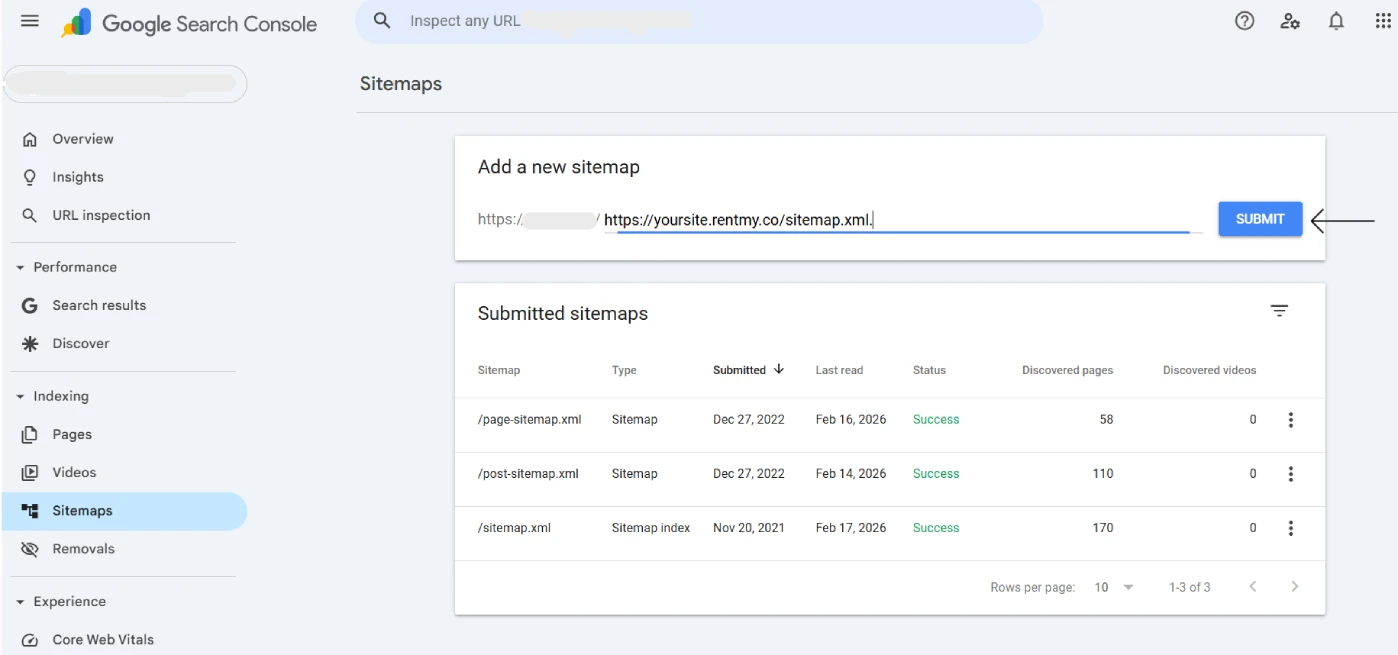
To submit your sitemap to Google Search Console:
- Go to the Sitemaps section in your Search Console dashboard.
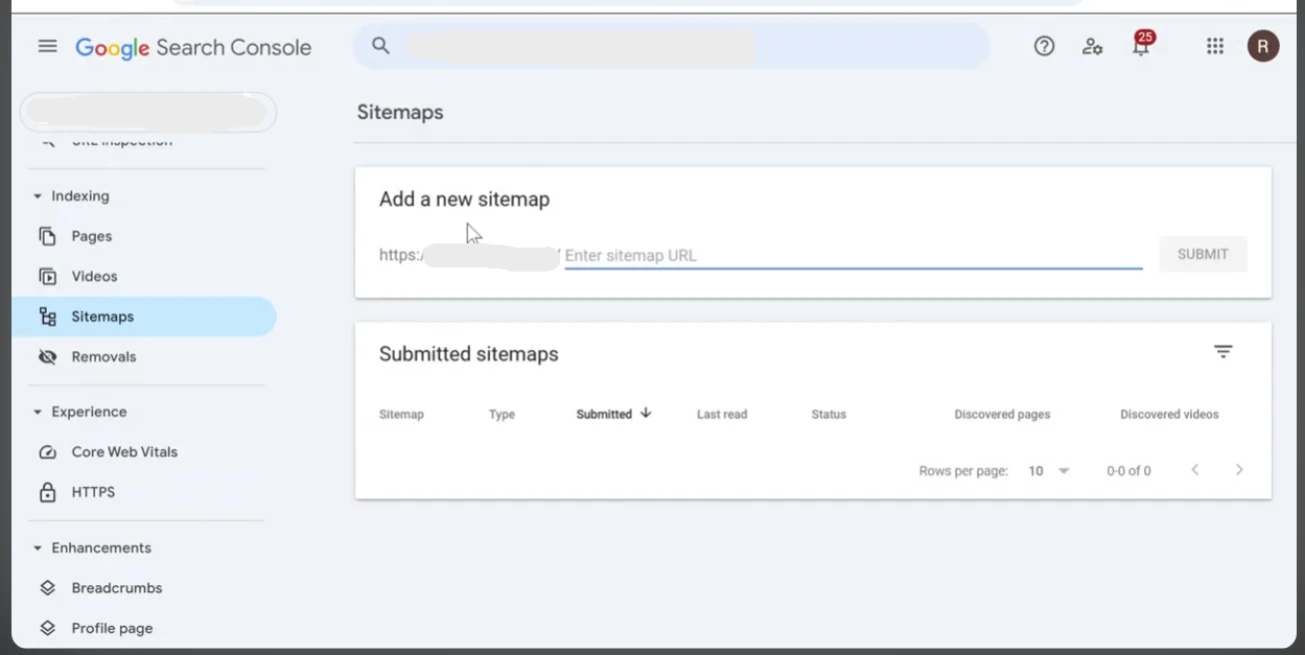
- Enter your sitemap link (e.g.,
https://yoursite.com/sitemap.xml).
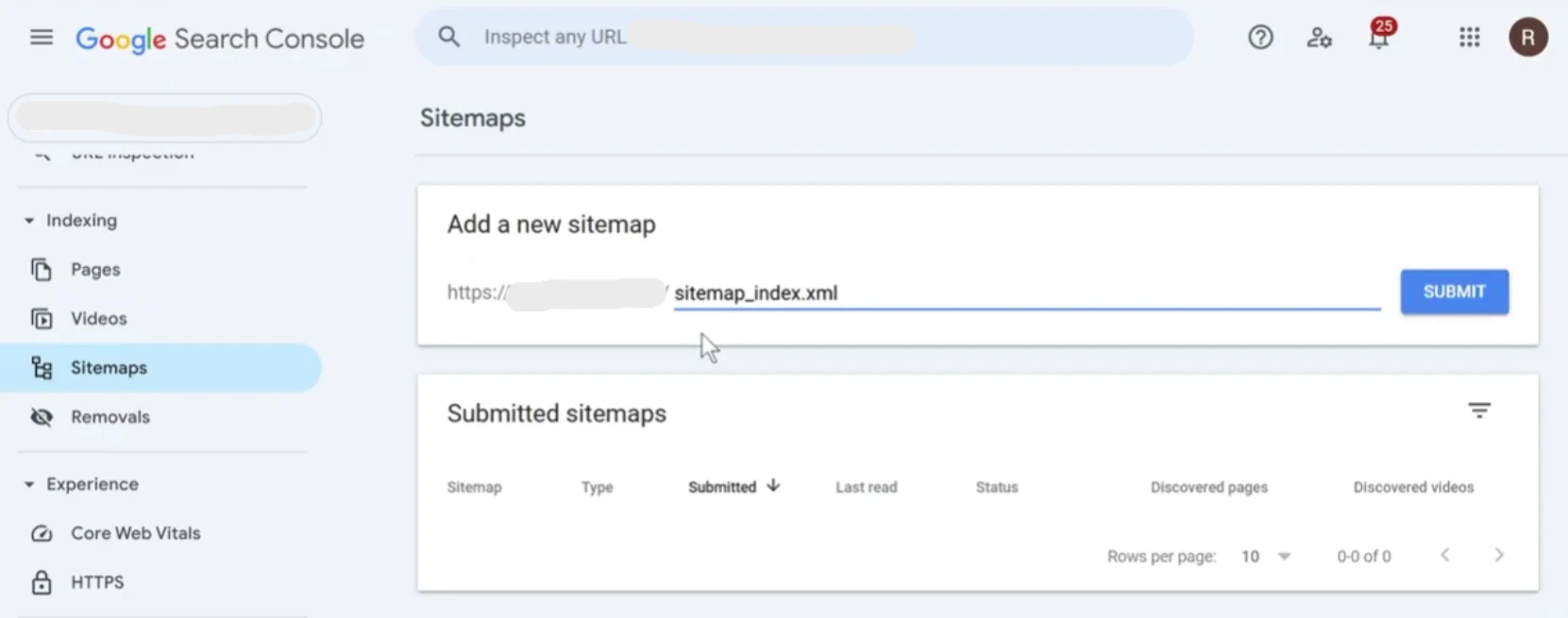
- Click submit.
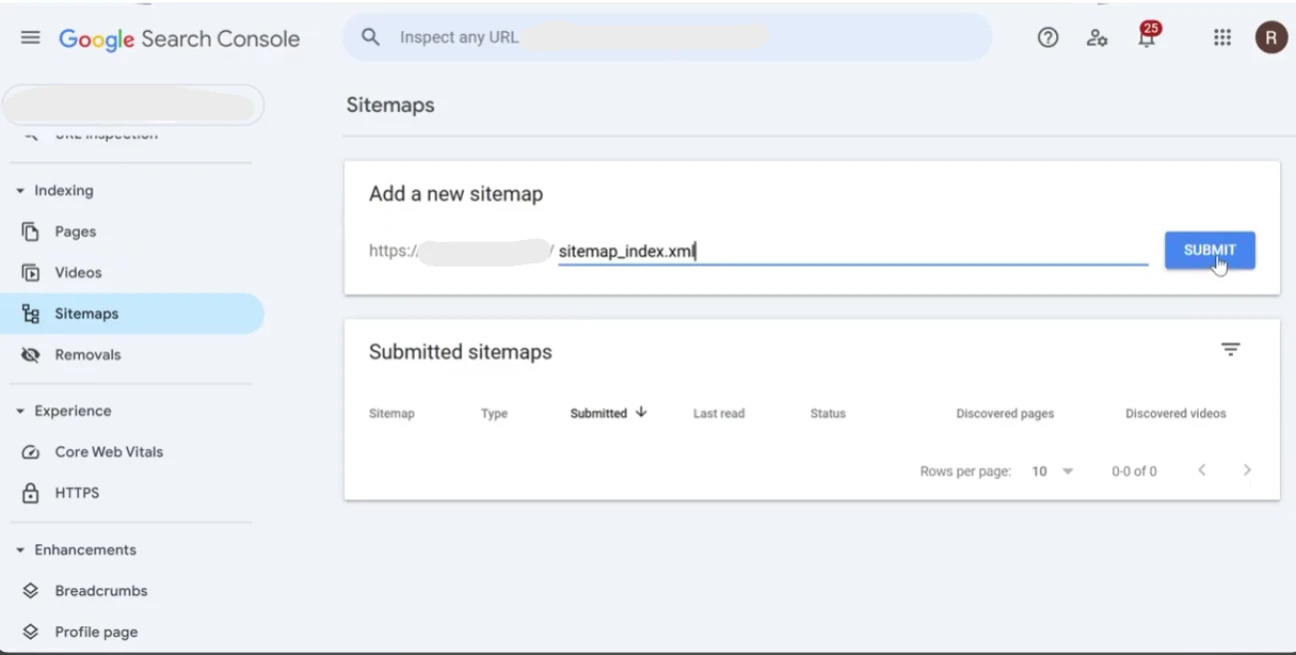
This ensures Google can index your important pages and keep your site updated in search results. Make sure to update your sitemap whenever pages are added or removed to keep it accurate and effective.
Request Indexing for Key Pages

Sometimes, even with a sitemap, you need Google to notice your updates fast, like when you add a new blog post or a fresh rental listing. Luckily, getting Google to take a look is simple. Here's how:
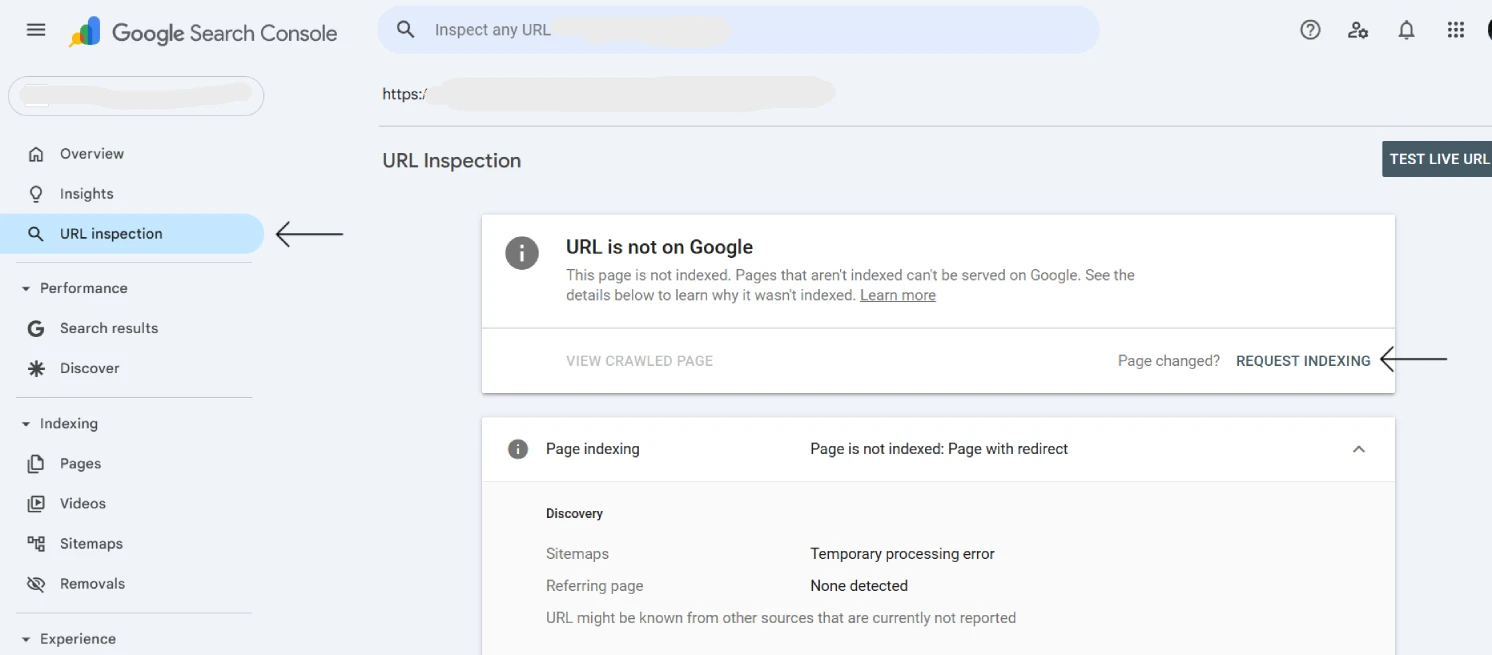
- Use the URL Inspection tool
Head to Search Console, paste your page link into the search bar, and check the status. If it's not indexed yet, click "Request Indexing" to let Google know it's ready.
- Re-submit your sitemap
Made several updates across your site? Submit your sitemap again to prompt Google to re-crawl everything efficiently.
Before you request indexing, double-check a few things: ensure the page is mobile-friendly, uses HTTPS, and isn't accidentally blocking search engines. This process helps avoid unnecessary delays.
Focus on prioritizing your most important pages like key rental listings, blog posts, or category pages. This ensures Google spots the content that drives the most traffic and engagement for your site.
Optimize Your Pages for Indexing
To make your rental website ready for search results, start by ensuring Google can understand your pages. Well-optimized sites signal that your content is valuable.
Focus on unique titles and meta descriptions for each listing to avoid duplicate pages and help users identify the right rental.
Use a clean URL structure like /rentals/jet-ski/ to make pages clear to both users and search engines. Avoid long, confusing links with random characters.
Add schema markup for rentals to provide Google with extra details like pricing and availability, using Product or Service schema for better search results.
Ensure fast loading speed and mobile-friendly design by compressing images and optimizing for responsive layouts.
Finally, use internal linking to guide Google to key listings and avoid duplicate content to prevent confusion. These small technical changes can improve crawling, indexing, and your users' experience.
Monitor Indexing Status in GSC
Once your rental pages are optimized, use Google Search Console to monitor their performance. This tool helps you track indexing status and fix issues that stop your pages from appearing in search results. It's the best way to ensure Google recognizes your site.
Here's how you can start monitoring your pages and fix some common issues:
Check the Coverage Report
Go to the Coverage report in Google Search Console to see which pages are indexed or excluded. It highlights issues such as ignored listings or broken pages. This helps you spot patterns and fix problems to ensure your site's content is properly indexed.
Review the Performance Report
The performance report shows your clicks and impressions. This helps you see which rental pages are popular and which are not. Over time, this data shows whether your SEO and indexing efforts are improving your site's visibility and attracting more visitors over time.
Fix Common Indexing Issues
Here are some common indexing errors and how to solve them:
Crawl Errors Crawl errors happen when Google can't access your pages, often due to server issues or blocked firewalls. Fix access problems in Search Console and test using the URL Inspection tool. After fixes, Google usually crawls your pages again within a few days.
Noindex Tags
Noindex tags block pages from search results. If accidentally added, your rental listings could vanish. Check your HTML for <meta name="robots" content="noindex"> tags, remove them, and then ask Google to re-index your page. Google will act on this change almost instantly.
Robots.txt Errors These errors can block Google from seeing your pages. If your robots.txt file says "Disallow: /rentals/", your listings won't show up in search results. Fix the file to allow important pages, then test it. Google updates this in a few hours.
Server Errors Server errors, like 5xx issues, happen when your site crashes or loads too slowly. This stops Google from accessing content and lowers your visibility. Fix it by monitoring uptime, improving hosting speed, and updating sitemaps. Recovery typically takes 1-2 weeks.
Pro tip: Set up email alerts in GSC to spot issues early and protect your traffic.
Encourage Faster Indexing with External Signals

To get your rental pages indexed faster, focus on creating strong external and internal signals. Share your pages on external paths like social media and get backlinks to show Google they're active. Use internal links to help crawlers find key pages easily.
Start by using internal links wisely. Link key rental listings from your homepage, menus, and popular pages to make them more visible to search engines.
Next, share your rental pages on social media and platforms like Google My Business (for local businesses) to create new discovery paths. These public links help Google identify fresh content quickly.
Finally, build a few high-quality backlinks from trusted sources, such as travel blogs or local guides, to further boost your pages' importance.
Together, these strategies signal Google that your site is active, connected, and valuable. This helps your rental pages show up in search results faster.
Common Indexing Issues & Troubleshooting
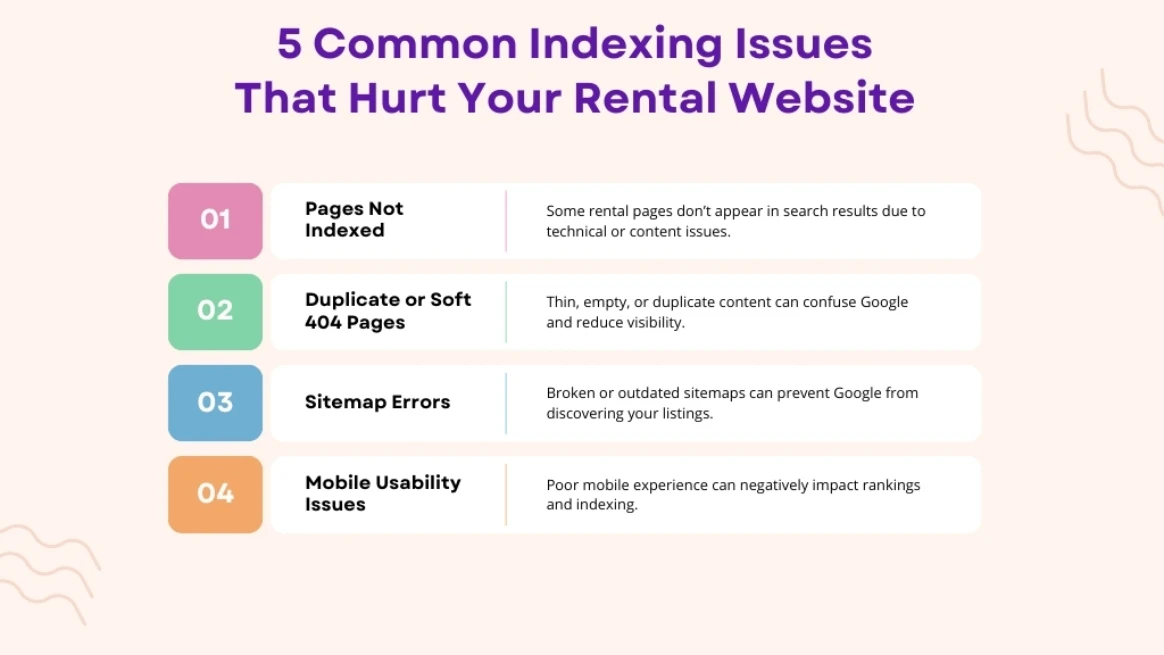
Even after setting up your site in Google Search Console, some rental pages may not show up in search results. Understanding and fixing these common indexing issues will help ensure your listings get discovered and ranked by Google.
Pages Not Indexed After a Request
Some pages don't show in search results due to technical issues, weak content, or poor formatting. Google may also delay indexing thin or incomplete pages. Boost their indexing chances by enhancing these pages with clear descriptions, images, and useful details.
Soft 404s or Duplicate Content
Duplicate and empty pages can confuse search engines and hurt your site's ranking. Make sure each page has unique content and a clear purpose. This helps Google identify valuable pages and improve your site's visibility and indexing.
Sitemap Errors
A broken or poorly formatted sitemap can stop Google from finding your pages. Keep it updated and free of broken links or hidden content to ensure search engines can index important pages smoothly without wasting resources.
Mobile Usability Problems
Mobile usability problems, like tiny text or hard-to-tap buttons, can negatively affect your site's indexing and user trust. With Google using mobile-first indexing, fixing these issues improves your site's rankings and ensures a better experience for mobile users.
Conclusion
We've covered how to prepare, submit, and optimize your pages so Google can easily read them. The goal? To get a rental website indexed properly. When these steps work together, your visibility improves effortlessly.
What's next? Regular check-ins. Pages change, listings grow, and search engines evolve. Stay proactive by monitoring your indexing to avoid traffic drops or missing pages.
Start small. Apply these tips to your top listings first, then scale up. A few quick updates today can help more customers find you tomorrow. Good luck!
FAQs
How Long Does It Take To Get A Rental Website Indexed?
The indexing process may take a few hours or even several weeks. Speed depends on site quality, crawl access, internal links, and whether pages are submitted through Google Search Console. New pages usually index faster when linked from existing, trusted pages.
Can Social Media Help Index Rental Pages Faster?
Social media does not directly control indexing, but it can help Google find pages sooner. Shared links may attract visitors and backlinks, which increases crawl activity and improves page discovery across search engines.
Is Indexing The Same As Ranking?
No. Indexing means Google stores your page in its database. Ranking defines your page's spot within Google's search results. A page must be indexed before it can rank, but indexing does not guarantee visibility.
Does Mobile Optimization Affect Indexing?
Yes. Google uses mobile-first indexing, meaning it evaluates the mobile version of your site first. If your rental site loads slowly or breaks on mobile, pages may be indexed poorly or ranked lower.